AnyDub Getting started
AnyDub is installed

Two minutesand you’ll never miss a word.

AnyDub is running in this browser right now. Here’s where it lives, how to switch it on, and what each control does.

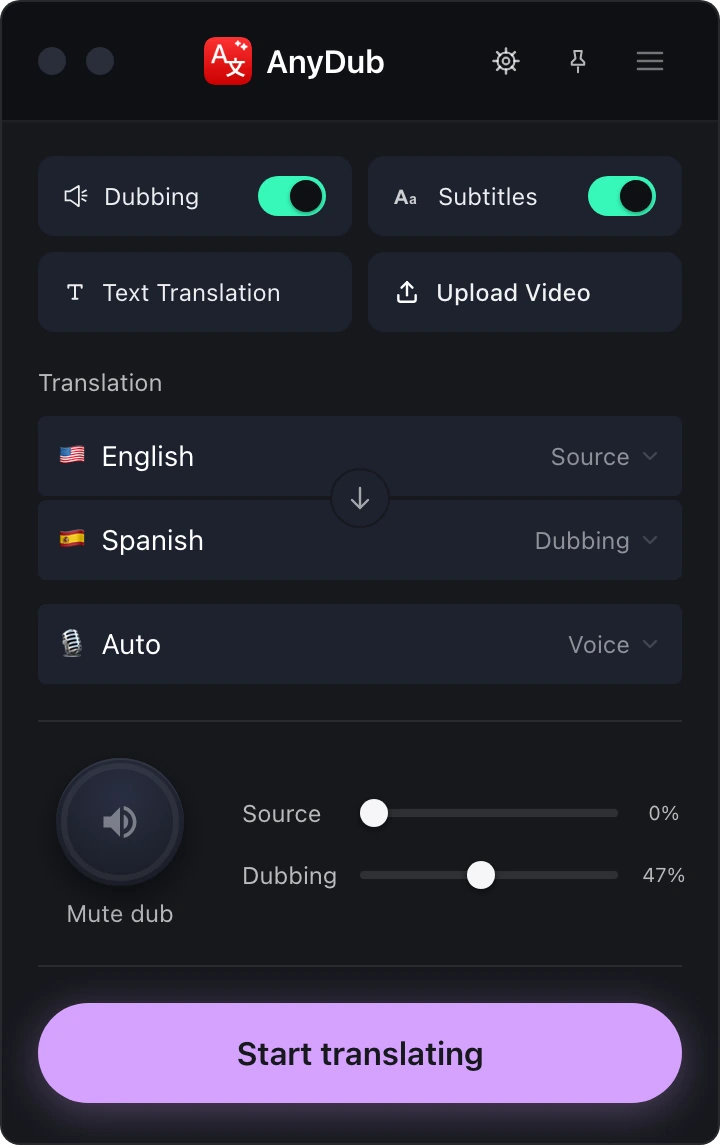
The AnyDub panel: Dubbing and Subtitles switches, source and target languages, voice, volume sliders, and a Start translating button.
1

Pin AnyDub to your toolbar

Click the puzzle-piece icon at the right of Chrome’s address bar to open the extensions menu, find AnyDub in the list, then click the pin beside it.

The AnyDub icon now sits in your toolbar permanently. Clicking it opens the panel on whatever page you’re on — and clicking it again turns AnyDub off for every page.
2

Choose dubbing, subtitles, or both

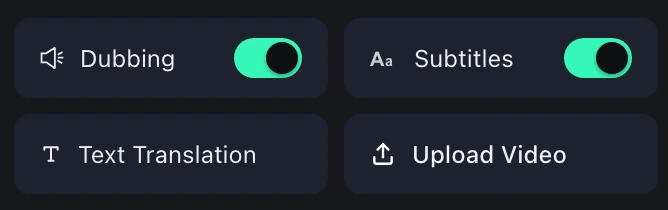
Dubbing speaks the translation out loud over the original audio. Subtitles show it as text on top of the video. They’re independent switches — run either one, or both at once.

Underneath, pick the language you want to hear or read. Then press Start translating. Changing the language later applies straight away; there’s no need to reload the page.

The four mode buttons at the top of the AnyDub panel: Dubbing and Subtitles, both switched on, above Text Translation and Upload Video.
3

On YouTube, it’s one click in the player

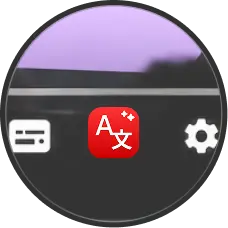
AnyDub adds its own button to the YouTube player controls, next to the settings gear. Click it and translated captions appear inside the video, in the language you’ve set — no panel needed.

You can turn that button off in settings if you’d rather keep the player untouched.

The YouTube player control bar: the AnyDub button sits between the captions button and the settings gear, with a Translate this video tooltip above it.
4

Select any text to translate or hear it

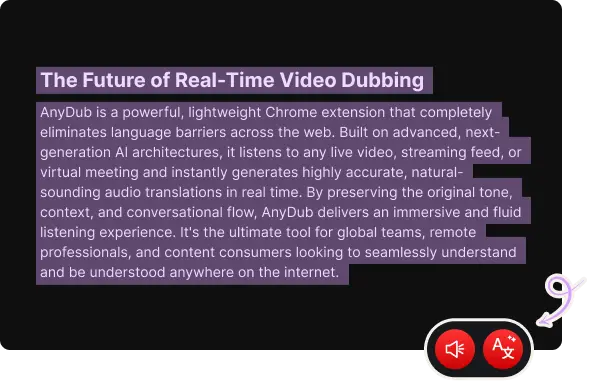
Highlight text anywhere on the web and a small bar appears beside your selection. One button translates it in place; the other reads it aloud in your language.

It works on any page — articles, docs, email, comments.

A paragraph of selected text on a web page with the AnyDub translate and read-aloud buttons beside it.
5

Write and translate in a side-by-side window

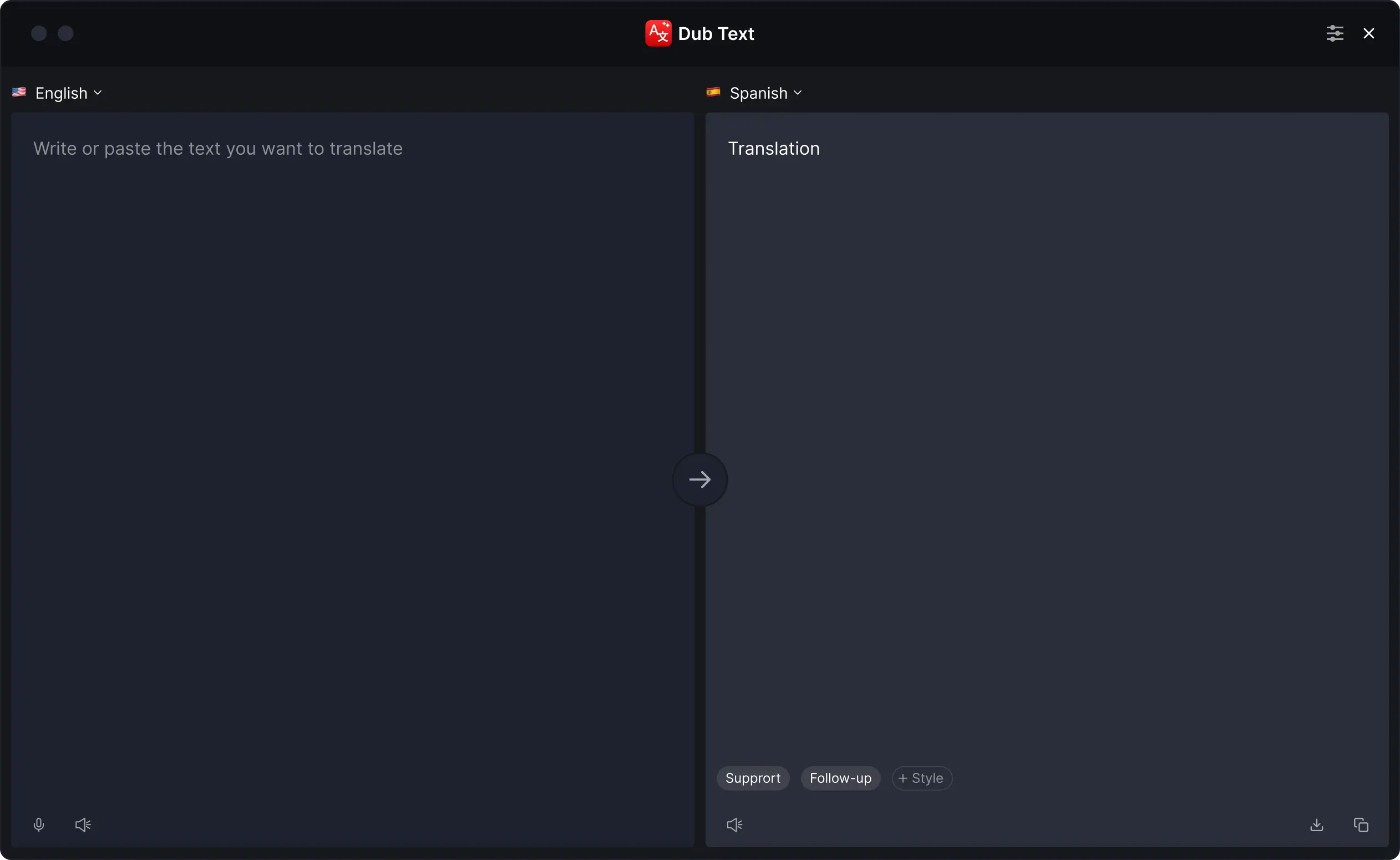
Text Translation in the panel opens a two-column window: your text on the left, the translation on the right. Adjust the tone with style tags, listen to the result, or save it as audio.

The AnyDub text window with the source language on the left and the translation on the right.
Make it yours

Prefer it quieter?Change how AnyDub shows up.

Open the gear icon in the panel header — or the link below — to adjust any of this.

Open settings